How do I take a screenshot?
Open the capture overlay, choose a rectangle, and drag across the area. The capture is copied to the clipboard. Open its notification to annotate or save in Snipping Tool.
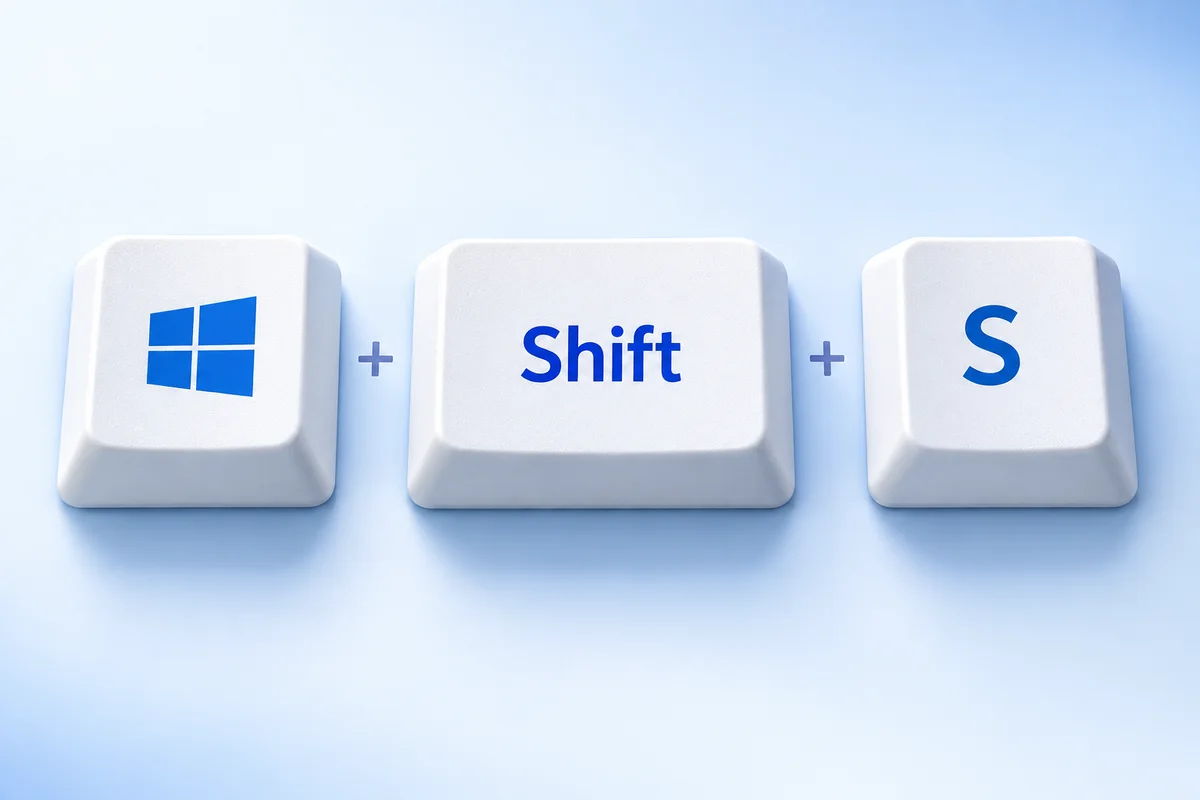
Find it: Clipboard; check Snipping Tool for saved copies
How do I capture the whole screen?
Press Windows and Print Screen together. Some laptop keyboards also need Fn. Look in Pictures → Screenshots for the resulting file; folder redirection can change its location.
Find it: Pictures → Screenshots
How do I capture one window?
Click the window you want first, then press the shortcut. Open Paint, a document, or a message and paste with Ctrl + V. Save the pasted image if you need a reusable file. Give it a descriptive name so you can find it again.
Find it: Clipboard
What does Print Screen do?
Print Screen may open Snipping Tool or copy the desktop, depending on your keyboard settings. On Windows 11, check Accessibility → Keyboard to change this behavior. If an overlay opens, select the capture area first.
Find it: Clipboard; Snipping Tool may also save a file
More options: how do I capture a game?
With Game Bar enabled, open the supported game or app and press these keys to take a screenshot. You can also open Game Bar with Win + G and use its Capture controls. Use Snipping Tool for the desktop or File Explorer.
Find it: Videos → Captures by default
Where should I paste it? I just need an image file.
Use Win + Shift + S, finish selecting the area, then paste with Ctrl + V. Try it here: click the paste box, paste your image, and choose Download PNG. Nothing is uploaded.
You can paste directly into a message or document if you only need to share the screenshot. Creating another file is optional.
Where do I find my screenshots?
A clipboard capture is not necessarily a file. Paste it into Paint and save, or use Snipping Tool to choose a name and folder. Current Windows 11 Snipping Tool saves captures automatically to its Screenshots folder by default. Check See more → Settings to change automatic saving or the folder. Older versions can require manual saving.
Check your version. Windows 11 and Windows 10 can expose different capture apps and settings. On Windows 11, check Accessibility → Keyboard for the Print Screen behavior. On compact laptop keyboards, the Print Screen label may share a key with another function.
How to screenshot on Windows: troubleshooting
No Print Screen key?
Open Snipping Tool from Start, or use Win + Shift + S. Neither requires a dedicated Print Screen key.
Why did nothing seem to happen?
A clipboard capture can be silent. Try pasting into Paint before repeating the shortcut. If an overlay appears, finish selecting the area first.
Can I delay the capture?
Open Snipping Tool and choose a delay when available. This gives you time to open a menu before selecting the area.
How to screenshot on Windows: before you share
Open the image at a readable size and check its edges. Keep enough surrounding context for the recipient to understand the problem, while removing anything unrelated. A short message explaining what to look at is often more helpful than several extra captures.
Operation reference: Official Windows support ↗.