How to screenshot.
Pick your device. Press the keys. Get on with your day.
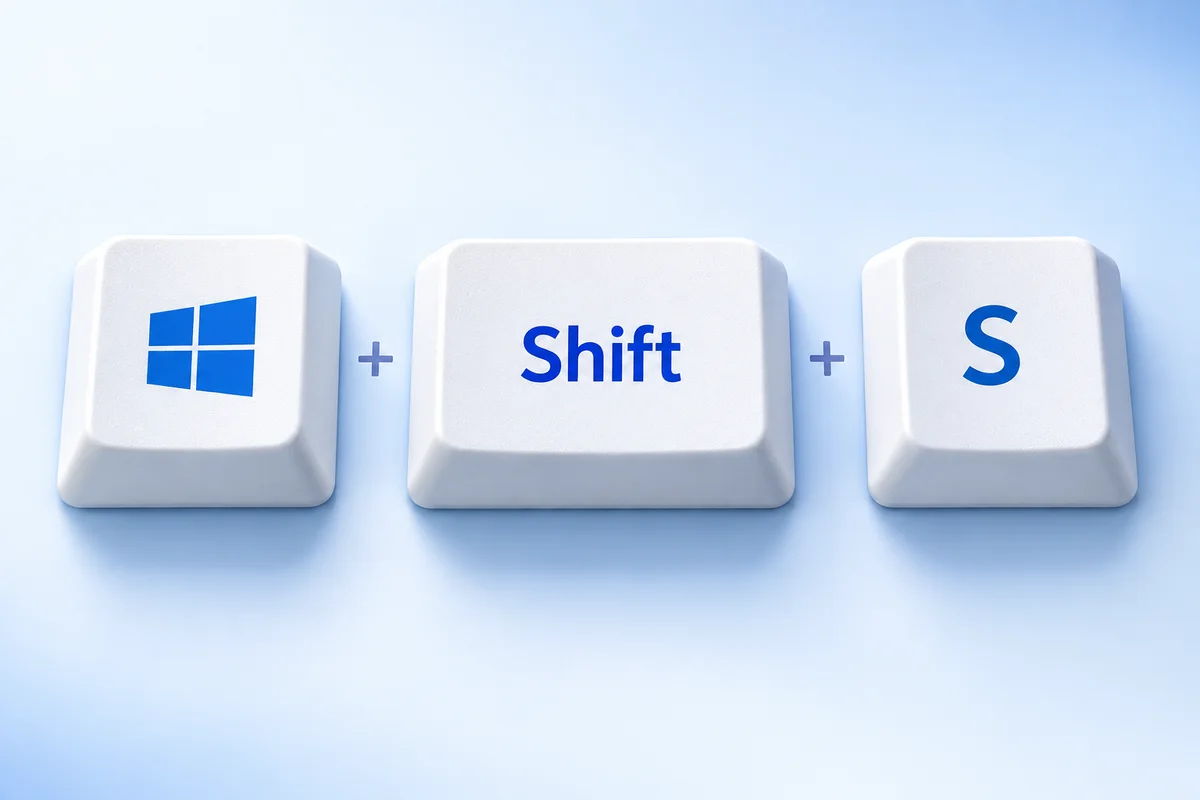
Windows shortcut
Open the capture overlay, choose a rectangle, and drag across the area. The capture is copied to the clipboard. Open its notification to annotate or save in Snipping Tool.
Find it: Clipboard; check Snipping Tool for saved copies.
Press Windows and Print Screen together. Some laptop keyboards also need Fn. Look in Pictures → Screenshots for the resulting file; folder redirection can change its location.
Find it: Pictures → Screenshots.
Click the window you want first, then press the shortcut. Open Paint, a document, or a message and paste with Ctrl + V. Save the pasted image if you need a reusable file. Give it a descriptive name so you can find it again.
Find it: Clipboard.
Try it here.
Paste → preview → download
Capture with Win + Shift + S, then click below and press Ctrl + V. On Mac, ordinary ⌘ + Shift + 3 saves a file instead of copying it.
Images stay in this tab. Nothing is uploaded.
PNG download keeps the image dimensions. Up to 20 MB; large images may exceed browser limits.
How to screenshot, step by step.
Learning how to screenshot starts with one choice: do you need the whole display, a single window, or just a small detail? Desktop computers usually offer all three. Phones start with the current screen and may offer a longer capture afterward.
Open what you want to capture before pressing the shortcut. Dismiss unrelated notifications, choose the smallest useful area, and check where the result went. A copied image still needs to be pasted; a saved image can be attached as a file.
Our guides put the common method first, followed by alternatives, save locations, and fixes for the moments when the expected preview does not appear.
How to screenshot: common questions
Do I need to download a screenshot app?
For an everyday capture, start with your device’s built-in controls. The guides above cover those first. Extra apps are optional, not a requirement to save what is already on your screen.
Where did my screenshot go?
It depends on the method. A desktop shortcut may copy to the clipboard or save to a folder. Phones normally provide an editing preview and a photo collection. Each device guide explains what to check.
Why do my buttons look different?
Laptop keyboards can combine functions on one key. Phones differ by model, and system updates can change the capture preview. Match the device and the physical buttons before following a demonstration.
Can this website capture my screen?
No. Use your device’s controls to capture the screen. The optional practice area previews an image you paste locally; nothing is uploaded.