How do I capture the whole screen?
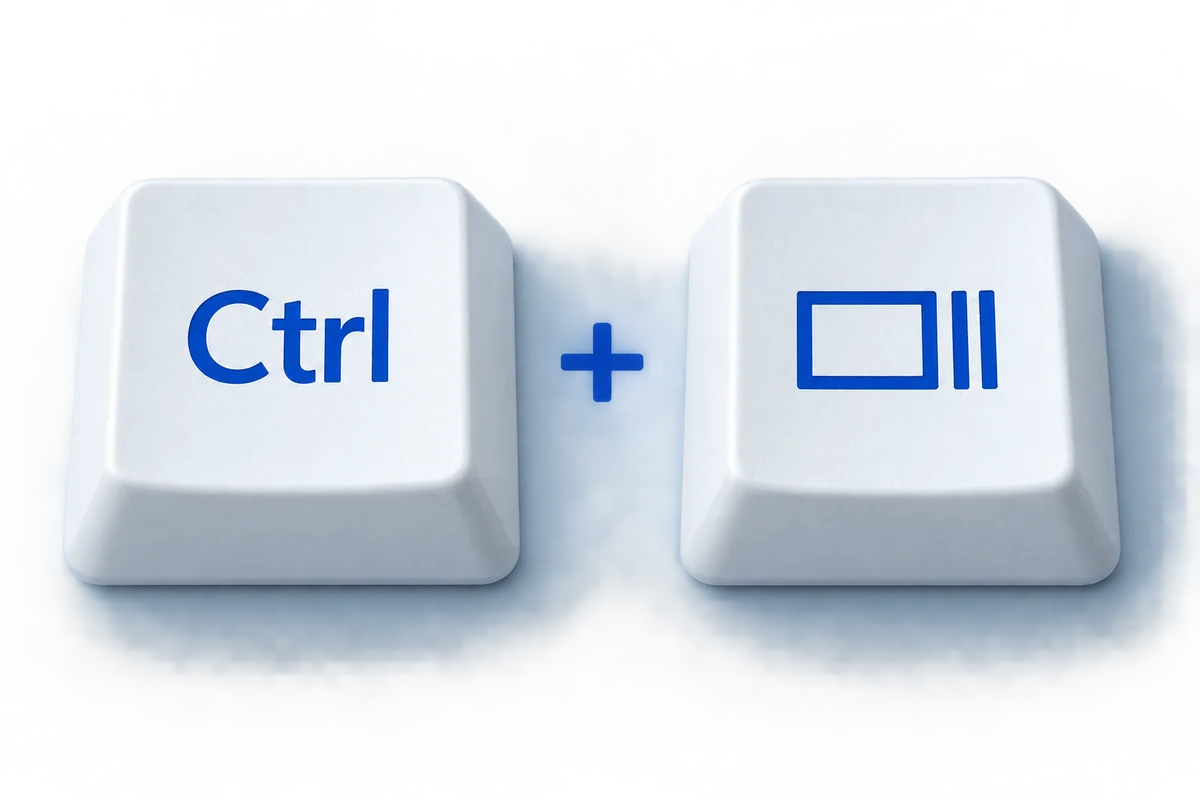
Press Ctrl and Show windows together for a full-screen capture. Use this when the complete layout matters and you do not need to hide other open windows.
Find it: Downloads by default
How do I capture part of the screen or one window?
Open Screen Capture, select Screenshot, and choose full screen, partial screen, or window. Drag a region or select the window as prompted. Check the selected mode before capturing.
Find it: The destination shown in capture settings
How do I capture without the keyboard?
Select the time on the shelf and choose Screen capture. This provides an alternative when a physical shortcut is inconvenient. In tablet mode, Power + Volume down is another supported capture method.
Find it: The chosen capture folder
What if I use a different keyboard?
If your keyboard has a Screenshot key, press it. With an external keyboard, use the documented shortcut Ctrl + Shift + F5 to open capture controls, or use Quick Settings when the top-row mappings differ.
Find it: Downloads or your configured destination
Which one is the Show windows key?
Look on the top row for a rectangle with two vertical lines beside it. It is different from the Full screen key with corner marks. If your keyboard has a dedicated Screenshot key, that opens the capture toolbar instead.
Where do I find my screenshots?
Open Files and check Downloads first. Screen Capture settings can change where files are saved. Screenshots are also copied to the clipboard; press Ctrl + V in a compatible app to paste. The preview provides quick access after a capture. School or work management can limit available actions, so a missing control may be a device policy.
Check your version. ChromeOS keyboards are not all identical. Dedicated Screenshot keys, top-row function keys, and tablet controls differ by model. Use the Show windows symbol in the diagram as a guide, and use Quick Settings if your keyboard does not match it.
How to screenshot on Chromebook: troubleshooting
Where is Show windows?
It is usually on the top row and looks like a rectangle with two lines at its right. Do not confuse it with Full screen, whose icon uses corner marks.
Can I capture one window?
Open Screen Capture, choose the window capture mode, and select the desired window. That keeps surrounding windows out of the image.
Why can I not find my saved capture?
Check the destination in Screen Capture settings and then open Files. If this is a managed device, your administrator may control storage or capture options.
How to screenshot on Chromebook: before you share
Open the image at a readable size and check its edges. Keep enough surrounding context for the recipient to understand the problem, while removing anything unrelated. A short message explaining what to look at is often more helpful than several extra captures.
Operation reference: Official Chromebook support ↗.