How do I capture the whole screen?
Press the three keys together, then release. Wait for the capture to save, or select the preview to edit it. This is a useful starting point when you need to show the complete layout.
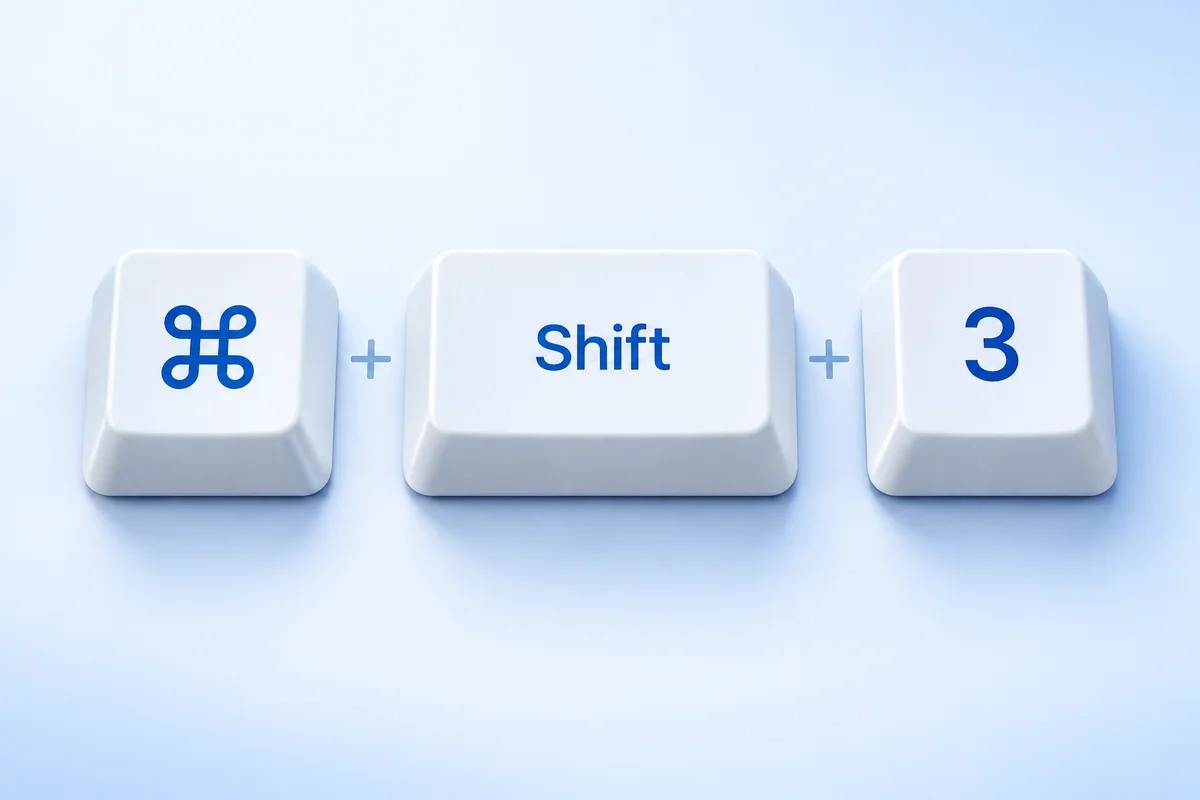
Find it: Desktop, unless you changed the destination
How do I capture part of the screen or one window?
Drag the crosshair around what matters and release the mouse or trackpad. Press Escape to cancel. For one clean window, press Space after the shortcut, then click the window.
Find it: A new image at your chosen save location
How do I change the save location or set a timer?
Open the Screenshot toolbar and choose a still-image capture mode. Options lets you choose a destination or a delay. Use a timer when a menu disappears as soon as you reach for the keyboard.
Find it: Your destination in Options
How do I copy a screenshot to the clipboard?
Add Control to the selected-area shortcut, drag a region, and release to copy the image. Switch to the message or document where you need it and paste with Command + V. This avoids creating a temporary file for a quick conversation.
Find it: Clipboard; paste before copying something else
Can you show me in a video?
Watch “How to Take a Screenshot on Your Mac | Mac Basics.” The interface in this video may differ from your macOS version; use the written steps above for current save and clipboard options.
Loads YouTube when selected. Watch on YouTube ↗ if playback is unavailable.
Where should I paste it? I just need an image file.
Add Control to Command + Shift + 4 to copy a selected area, then paste with Command + V. Ordinary Command + Shift + 3 or 4 saves a file instead. Try it here: click the paste box, paste your image, and choose Download PNG. Nothing is uploaded.
You can paste directly into a message or document if you only need to share the screenshot. Creating another file is optional.
Where do I find my screenshots?
Look on the desktop first. If the file is missing, open the Screenshot toolbar and check Options. A changed destination stays in effect, so a previous capture may have gone to a different folder. SDR captures use PNG; supported Mac models running macOS Tahoe 26 or later can also capture HDR images in HEIF.
Check your version. The Screenshot toolbar requires macOS Mojave or later. Touch Bar models have additional capture options, but Command + Shift + 6 is not a universal screenshot shortcut on current Macs. Check your keyboard shortcuts if a combination has been reassigned.
How to screenshot on Mac: troubleshooting
Can I use a Windows keyboard?
Look for the key mapped to Command, often the Windows-logo key. Keyboard mappings can be customized, so check Keyboard settings before assuming the printed labels match.
How do I get a JPEG?
Open the saved image in Preview and use File → Export to choose JPEG. Keep the original if you might need a sharper version later.
Why is a window blank?
Some apps restrict screen capture. Try capturing a normal desktop window to distinguish an app restriction from a keyboard issue.
How to screenshot on Mac: before you share
Open the image at a readable size and check its edges. Keep enough surrounding context for the recipient to understand the problem, while removing anything unrelated. A short message explaining what to look at is often more helpful than several extra captures.
Operation reference: Official Mac support ↗.