How do I take a screenshot?
Press Power and Volume down together, then release. Open the small capture preview to edit or share. If it does not work, check your manufacturer instructions rather than repeatedly holding buttons for longer.
Find it: Photos or Gallery → Screenshots
How do I capture a scrolling page?
After a regular capture, look for Capture more. On supported Android 12 and later screens, it lets you extend the image and adjust its crop. A missing button can mean the screen or app does not support it.
Find it: A longer image in your screenshot collection
Which extra controls does my phone offer?
Pixel may offer Screenshot from the recent-apps overview. Supported Samsung models can offer Palm swipe to capture. OnePlus and Xiaomi models may offer three-finger gestures. Availability and setup vary; the tabs below link to the relevant notes.
Find it: The same local screenshot collection
What if the button shortcut does not work?
On some phones, holding Power reveals a Screenshot action. If neither the common shortcut nor that action is available, use your manufacturer support page. Voice-assistant commands vary by assistant and device, so they are not a reliable universal fallback.
Find it: Check the capture preview and your Gallery
Which buttons should I press?
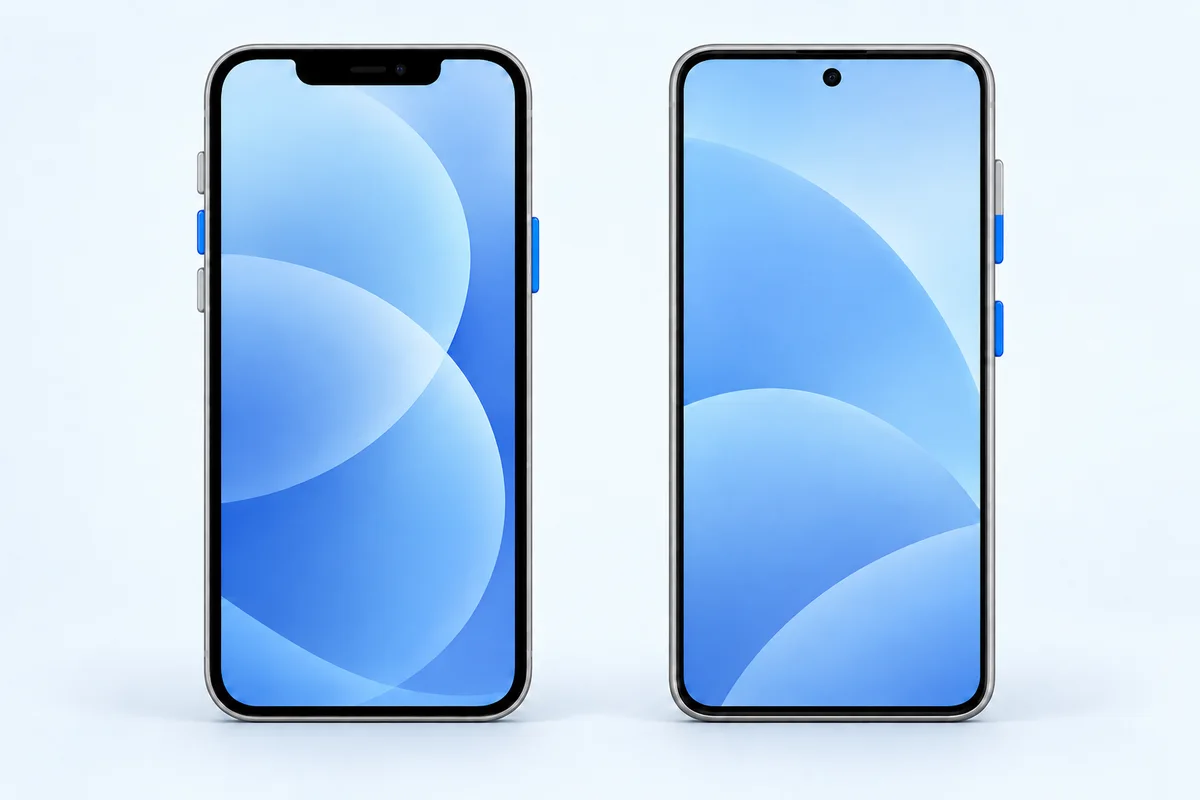
Power wakes or locks the phone. Volume down is the lower part of the volume rocker. Their positions vary by model, so check the labels or your device manual. Press both together briefly; holding Power alone may open another control.
Choose your phone
Pixel capture options
The recent-apps overview may offer a Screenshot button. The standard Power and Volume down method is a useful fallback. Pixel instructions ↗
Samsung capture options
Check Advanced features → Motions and gestures for Palm swipe to capture on supported models. Swipe the edge of your hand across the screen when enabled; the settings path can vary. Samsung instructions ↗
Other Android phones
Look in your phone’s gesture settings for a three-finger screenshot option. The available action depends on the model and software version. Xiaomi instructions ↗ · OnePlus 9 manual ↗
Where do I find my screenshots?
In Google Photos, try Collections → On this device → Screenshots. Other phones use a Gallery app with different labels. A locally saved image is not the same as a cloud backup; verify the file exists before you erase the original information.
Check your version. Capture more requires a supported screen and, for the Google-documented flow, Android 12 or later. Manufacturer gestures are optional and can be disabled. Work profiles, banking apps, and protected content may restrict screenshots.
How to screenshot on Android: troubleshooting
Why did the phone lock?
Power may have registered before Volume down. Wake the phone and try pressing both together. Remove a case temporarily if it prevents a clean button press.
Why is Capture more missing?
Not every app exposes a scrollable capture surface. Try a normal webpage to check the feature before assuming your phone is broken.
Can I force a blocked screenshot?
This guide does not bypass app restrictions. Use an app’s permitted export or share function when it provides one.
How to screenshot on Android: before you share
Open the image at a readable size and check its edges. Keep enough surrounding context for the recipient to understand the problem, while removing anything unrelated. A short message explaining what to look at is often more helpful than several extra captures.
Operation reference: Official Android support ↗.